


Open /robots.txt on almost any WordPress site and you get a file. Look for that file on the server, and on most sites it is not there. That gap is behind most of the robots.txt problems I see on WordPress: someone edits one version while crawlers read another.
This guide covers where the file comes from, the ways to change it, a starting file you can copy, what to do about AI crawlers, and the mistakes that cost rankings.
Where the WordPress robots.txt comes from
A fresh WordPress install has no robots.txt file on disk. When a request for /robots.txt arrives, WordPress builds the answer itself, with a core function called do_robots(). That is the "virtual" robots.txt.
On a public site, current WordPress serves this:
User-agent: *
Disallow: /wp-admin/
Allow: /wp-admin/admin-ajax.php

Sitemap: https://example.com/wp-sitemap.xml
Disallow: /wp-admin/keeps crawlers out of the dashboard. WordPress takes the path from your admin URL, so it changes if WordPress lives in a subfolder.Allow: /wp-admin/admin-ajax.phpreopens one file inside it, because themes and plugins call it to load content on public pages.- The
Sitemap:line arrived with core XML sitemaps in WordPress 5.5. It appears only while the site is public and core sitemaps are on, so if an SEO plugin builds your sitemap, check where the line points.
Two rules decide what crawlers actually get:
- A real file wins. Once a
robots.txtfile exists in your web root, the server sends it, and WordPress never builds the virtual one. Anything a plugin adds to the virtual file stops applying. - Code can rewrite the virtual file. Its output passes through the
robots_txtfilter, which SEO plugins and your own code can change.
How to edit robots.txt in WordPress
With Yoast SEO
Go to Yoast SEO > Tools > File editor. If there is no file yet, click Create robots.txt file, then edit and save. Yoast writes a real file to your server, so from then on that file is what crawlers read. The menu is hidden when file editing is disabled on the site.
With Rank Math
Turn on Advanced Mode, then go to Rank Math SEO > General Settings > Edit robots.txt. Rank Math edits the virtual file, so it needs no file on disk. If a real robots.txt already exists, Rank Math's docs tell you to delete it first, because the real file would override your edits.
With a real file over SFTP
Create a plain text file named robots.txt and upload it to your web root, usually the folder that holds wp-login.php. Most hosts' file managers can do the same. This is the most predictable option: what is in the file is what crawlers get, whatever your plugins do.
With the robots_txt filter
Developers can keep the rules in code, in a small plugin or a must-use plugin. This adds a group to the virtual file on public sites only:
add_filter( 'robots_txt', function ( $output, $public ) {
	if ( $public ) {
		$output .= "\nUser-agent: CCBot\nDisallow: /\n";
	}
	return $output;
}, 10, 2 );
The filter only works while there is no real file, so pick one method and stick with it.
A safe robots.txt for WordPress to start from
Most WordPress sites need very little. This is a conservative starting point:
User-agent: *
Disallow: /wp-admin/
Allow: /wp-admin/admin-ajax.php
Disallow: /?s=
Disallow: /search/

Sitemap: https://www.example.com/wp-sitemap.xml
Line by line:
User-agent: *starts the group every crawler reads, unless it has a group of its own.Disallow: /wp-admin/andAllow: /wp-admin/admin-ajax.phpare WordPress's own defaults. Keep both. When rules conflict, the longer one wins, so the Allow reopens that one file.Disallow: /?s=andDisallow: /search/keep crawlers out of internal search results. Anyone can generate endless search URLs, and none of them deserve a crawl. WordPress already marks search pages noindex; this also saves the crawling. Leave both lines out if your search pages matter to you.Sitemap:is the full URL of your sitemap. If an SEO plugin builds it, use the sitemap URL the plugin shows in its settings.
What to leave out:
/wp-content/and/wp-includes/. Your theme's CSS and JavaScript, your uploaded images and WordPress's own scripts live there. Google renders pages much like a browser, so blocking them can leave it looking at a broken page, and your images can drop out of image search.Crawl-delay. Googlebot ignores it.- Tag, category or author archives you do not want in Google. Use the noindex setting in your SEO plugin instead. A Disallow would hide that noindex from Google.
Blocking or allowing AI crawlers
AI crawlers are not one thing, and blocking them is four separate decisions:
- Training crawlers collect pages to train models:
GPTBot(OpenAI) andClaudeBot(Anthropic). Blocking them costs you no traffic and does not affect search rankings. - Data-collection crawlers build archives that others reuse:
CCBotcollects Common Crawl's open web archive, a common source of AI training data. Blocking it stops future crawls. - AI search and assistant crawlers fetch pages so an assistant can cite them:
OAI-SearchBot,Claude-SearchBotandPerplexityBot, plus fetchers likeChatGPT-Userthat load a page because a person just asked about it. Blocking these removes you from those answers and from the links back to you. - Usage tokens fetch nothing.
Google-ExtendedandApplebot-Extendedtell Google and Apple whether content their regular crawlers already have may be used for their AI models. BlockingGoogle-Extendeddoes not change Google Search or remove you from AI Overviews.
A common choice is to block training and data collection and keep the rest open. Add a group like this below your User-agent: * group:
User-agent: GPTBot
User-agent: ClaudeBot
User-agent: CCBot
User-agent: Google-Extended
User-agent: Applebot-Extended
Disallow: /
Two things to know before you paste it. First, a crawler named in its own group reads only that group and skips your User-agent: * rules entirely, so repeat any Disallow lines it should still follow. Second, robots.txt is a request. Crawlers that ignore it have to be blocked at your CDN, firewall or server.
Our free AI crawler blocker writes these groups for 20 AI crawlers and usage tokens, explains what blocking each one costs, and can compare your picks with your live robots.txt. Each major AI crawler also has its own page with its user agent and how to verify a visit.
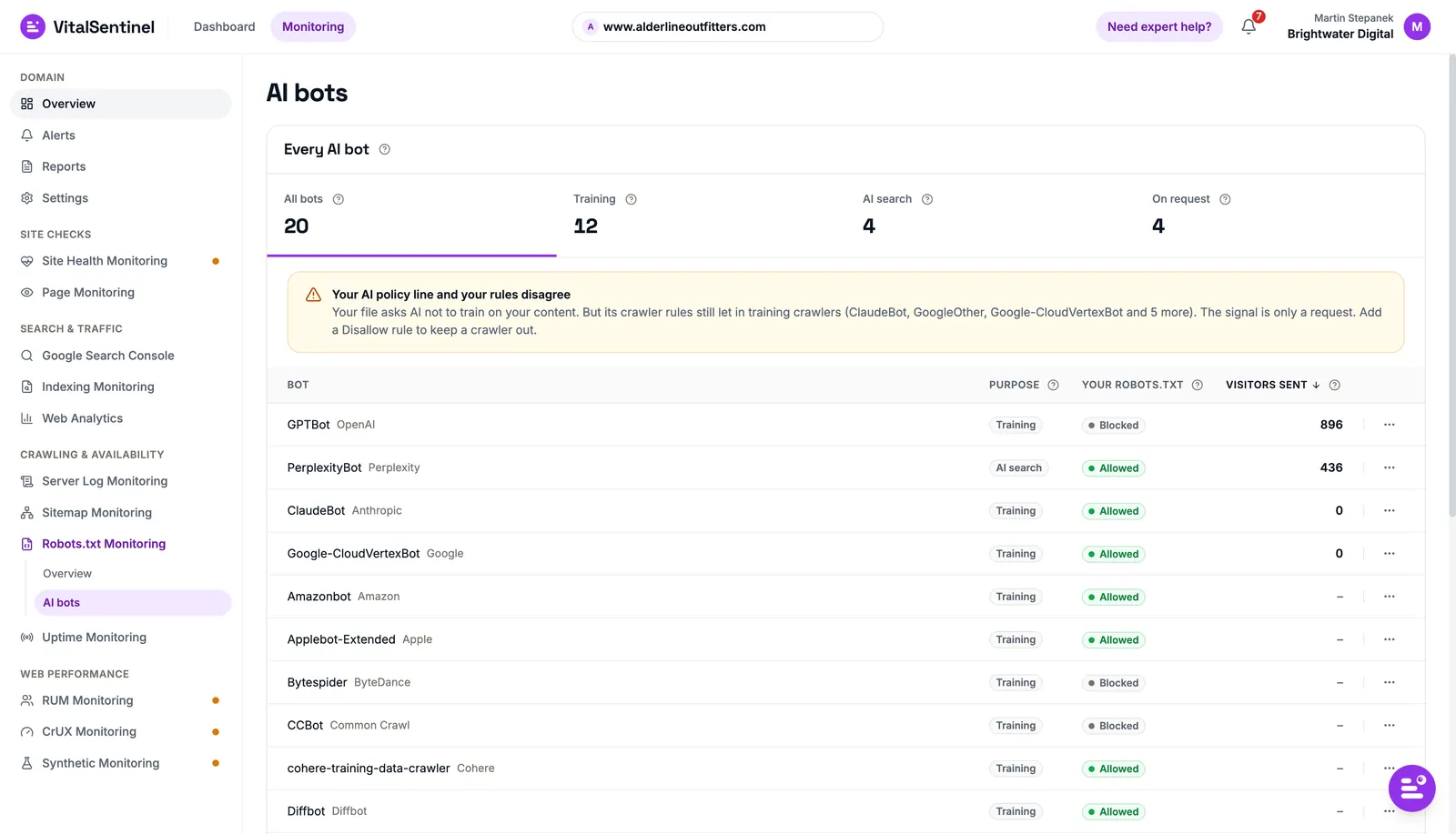 Robots.txt Monitoring groups every AI bot by purpose and shows what your file tells it
Five mistakes that cost rankings
"Discourage search engines" left on after launch
Under Settings > Reading, the Search engine visibility checkbox reads "Discourage search engines from indexing this site". It is meant for sites under construction, and it often survives the launch.
Older guides say it adds Disallow: / to robots.txt. It has not done that since WordPress 5.3. Today it adds a noindex, nofollow robots meta tag to your pages, removes the Sitemap line and switches off core sitemaps. Your robots.txt looks almost normal, so check a page's source, or run it through the Indexability checker.
Blocking /wp-content/, /wp-includes/ or admin-ajax.php
Old security and "crawl budget" advice still recommends it. It blocks the files Google needs to render your pages and the images you want found, and it saves nothing worth saving.
A staging robots.txt shipped to production
A staging site should block everything with Disallow: /. When a site is pushed live by copying files, that robots.txt can come along, and because a real file beats the virtual one, it shuts out every crawler. Check robots.txt after every migration.
Using robots.txt to remove pages from Google
Disallow stops Google from fetching a page, not from listing it. A blocked URL that other pages link to can still show up in results without a description, and Google cannot see a noindex tag on a page it may not fetch. To remove a page, let Google crawl it and set it to noindex.
A plugin and a real file disagreeing
The classic case: a site moves from Yoast to Rank Math, the file Yoast wrote stays on the server, and every edit in Rank Math goes nowhere. If what you see at /robots.txt does not match your plugin's editor, look for a real file in the web root.
How to test your robots.txt
Start by opening https://yourdomain.com/robots.txt in a private window. That is the file crawlers get, whatever your plugin's editor shows. If you changed it and nothing moved, clear any page cache or CDN cache that serves it.
Then test what it does. Our free robots.txt tester fetches the file, reports its status code and any redirects, and lists syntax problems worst first. Give it a path and it tests 29 search, AI and regional crawlers against it, with the rule that decides each verdict. It also flags crawlers whose own group exempts them from your User-agent: * rules.
wordpress.org is a good example. Its file welcomes AI crawlers with groups of their own, so they skip the Disallow: /wp-admin/ line that stops Googlebot:
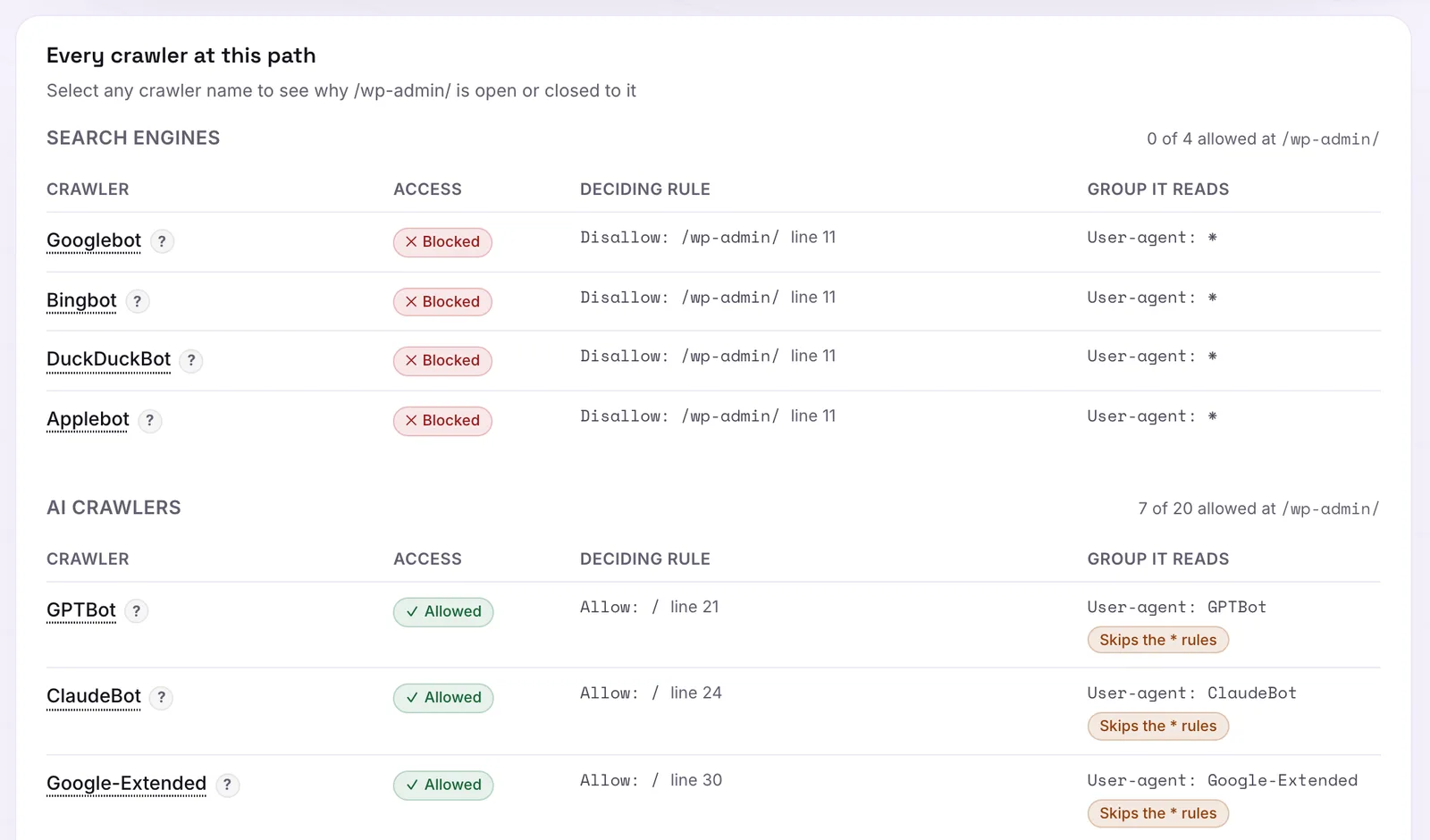 Search engines follow the wildcard group, while AI crawlers with their own groups skip it
Harmless there, since the dashboard asks for a login anyway. On your site, the same pattern can quietly reopen something you meant to close.
Google Search Console has a robots.txt report under Settings, which shows the robots.txt files Google found, when it last fetched them and any errors. Google keeps a copy of your file for up to 24 hours, so a fix can take a day to reach Googlebot.
Know when your robots.txt changes
Testing tells you the file is right today. It does not tell you when a plugin update, a host migration or a teammate's quick fix changes it next month.
Robots.txt Monitoring in VitalSentinel reads your file every hour and records each change in Change history with the lines that moved. Compare shows what was added and removed, and with Google Search Console connected, each change shows the pages it blocked and the Google clicks those pages had. You can be alerted when robots.txt changes, does not load, has errors, or blocks pages your sitemap lists.
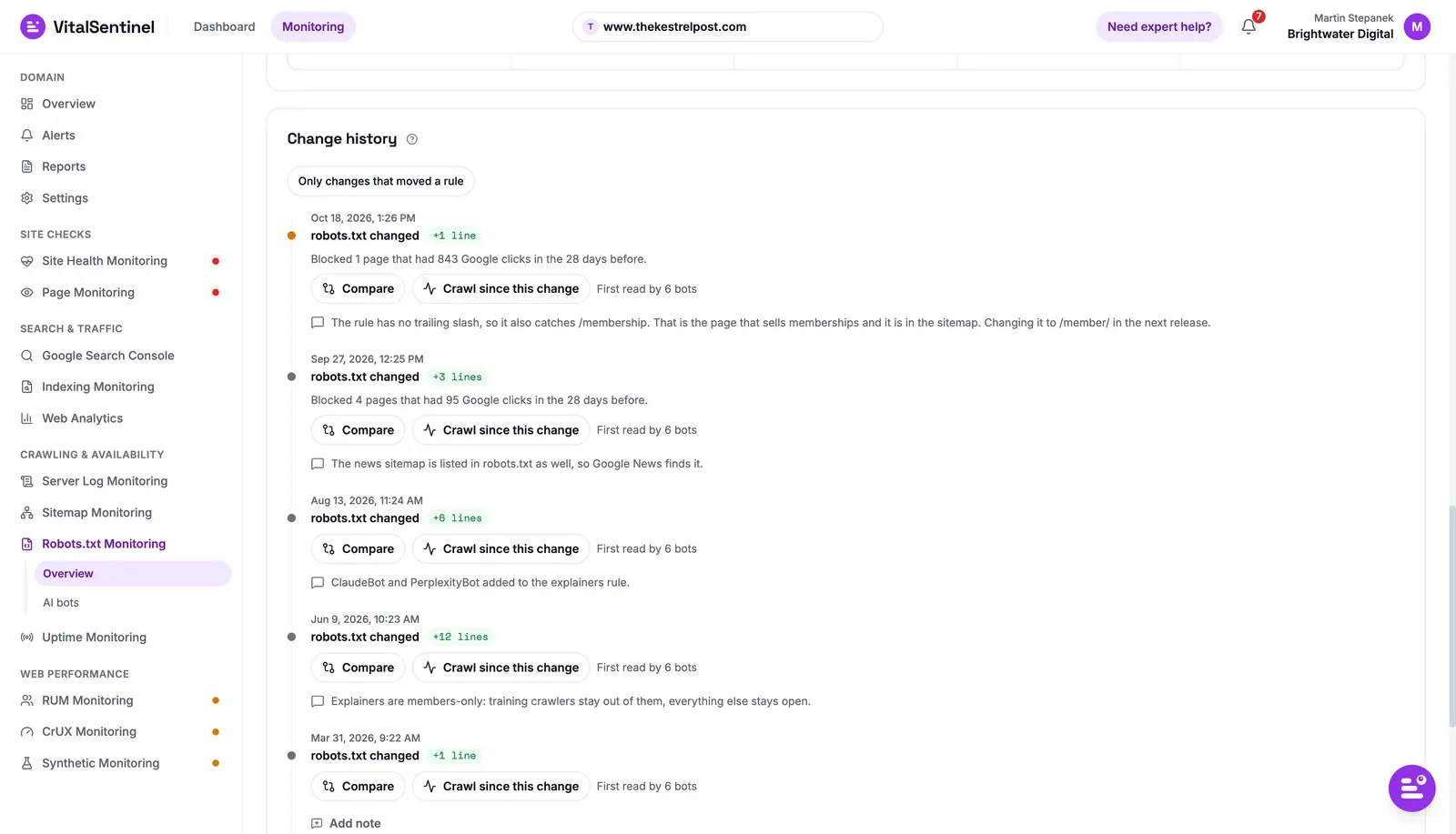 Every change, with the pages and Google clicks it blocked
It runs on every plan, Free included. Start for free: 1 domain, all 12 modules, no credit card. The feature page has the overview.

Written by
Martin Stepanek
Enterprise Technical SEO Consultant
15+ years building enterprise websites and designing the infrastructure behind them, and 5+ in technical SEO and web performance. My work is making companies findable – not just on Google, but inside ChatGPT and the other AI engines people now ask first. I write a regular newsletter and blog on technical SEO at TechSEO Vitals, and I built VitalSentinel because the gap between something breaking and someone noticing should be minutes, not days.
The VitalSentinel Newsletter
New features as they ship and practical technical SEO tips. One email a week at most.
